Introducing NoteComb

May 18th, 2009

I’ve been writing an application for my other half in recent months to help her organise observations of the children in her class. I’ve actually written two versions of the app. The first was dubbed “Observertron” and in retrospect was overly complex. After a bit of thought I was able to vastly simplify the app, whilst also making it more useful for other purposes beyond making observations.

The app is called NoteComb and is written in Python using wxPython. It’s essentially a specialised text-editor. The core feature is a grep-like search functionality coupled with the ability to edit text in-place during a search. Lines that don’t contain the search terms get hidden, leaving you free to edit the remaining lines as you want:


I’ve decided to take the time and try to package it up “properly”. So NoteComb is available as Mac and Windows apps, complete with icons etc. In fact to “regular” users it should appear that NoteComb is an app like any other – the fact it’s written using Python is largely incidental.

This packaging works pretty well overall and is pretty seamless once the app is downloaded, but it does tend to make for rather large apps. The Windows version when packaged as an installer runs in at about 4Mb, which isn’t too crazy, but the OS X app packed into a compressed DMG file weighs in at 15Mb! At the end of the day the app does include Python + wxPython + various libraries, so it’s not a surprise really, but I guess I was kind of hoping that I might develop in Python and get everything for free…

This is an early version of NoteComb (version 0.2.1), but it’s core functionality is there. Most of the extra work I’ve done has been on adding those little extra bits that aren’t core to the app, but are generally just expected (e.g. remembering previous window positions, copy/paste, undo/redo etc).

So feel free to download NoteComb and give it a go.

Easily setting frame icon from exe file in wxPython

May 1st, 2009

I’ve updated the relevant wxPython wiki page with this info, but thought i’d record it here for posterity too.

I’m currently playing around with writing a wxPython app. It’s at the point where I’m starting to package it into executables to be run without needing Python installed.

Py2exe is the tool I’m using for creating a windows app (and py2app for the mac). It’s possible to specify an icon for the executable you create with py2exe. However it’d be nice if this same icon would be used as the icon for frames created by that app. One could include an extra icon as a resource and load that up, but this seems counter to the whole DRY principle. Instead it’d be better to load the same icon from the executable we have created already.

Consulting the wxPython wiki showed that some enterprising souls had already had a go at doing this, but the solutions there relied on the win32api modules amongst others. My Windows machine didn’t have this module installed (as it was running Python 2.5) and looking at the 2nd solution proposed I saw a way to remove this dependency (and thus decrease the size of the final exe as it would not need to include the extra dll’s etc).

So here’s the sample code, from the wiki, I posted:


import wx, sys

class MyFrame(wx.Frame):
    def __init__(self, parent=None):
        wx.Frame.__init__(self, parent, wx.ID_ANY)
            # set window icon
            if sys.platform == 'win32':
                # only do this on windows, so we don't
                # cause an error dialog on other platforms
                exeName = sys.executable
                icon = wx.Icon(exeName, wx.BITMAP_TYPE_ICO)
                self.SetIcon(icon)

if __name__ == '__main__':
    app = wx.App(redirect=False)
    frame = MyFrame()
    frame.Show(True)
    app.MainLoop()

Basically it uses sys.executable to find the exe we are running in and then gets wxPython to load the first icon it finds from it (which should be the icon of the executable itself). So when you run this directly from python (not packaged), you end up with the icon from the python executable, but when you run the packaged version you get the icon from the exe instead.

It includes the platform check, as otherwise the app throws up an error dialog on the mac and obviously I want this to work on both platforms (and Linux too in the future).

5K Morse Code App Using Capslock LED

March 1st, 2009

This is probably my first attempt at “literary programming”, though using that phrase may be taking liberties a little. In this case by “literary programming” I mean – programming inspired by literature. The literature in question is Cryptonomicon by Neal Stephenson. Cryptonomicon already features a Perl script in it’s pages, but that’s not what I’m talking about here. Instead there’s a chapter later in the book when Randy Waterhouse has been incarcerated. However he’s been given the use of his laptop so that – his captors hope – he will decrypt a key piece of data whilst they are monitoring his screen via Van Eck Phreaking. Randy cottons onto this, so he creates an app that will convert text to morse code and have that morse code emitted via the LEDs on his laptop’s keyboard.

I suddenly decided to have a go at creating such a morse code script for my Macbook and here’s the result in action:


You can test the script out by running this at the command line (from the directory with the script in):

echo 'sos' | python morse.py -led

It depends on libraries that are only found in OS X 10.5 Leopard for controlling the capslock LED.

With a bit of compression it all fits well under 5K of code, so makes a worthy example of a 5K app. The morse part of the app is very simple – apart from the lookup table, it could probably fit into 2-3 lines of code! The bulk of the code is simply concerned with driving the capslock key’s LED via the HID. For this I cribbed heavily from some of Apple’s sample code and converted it to run in Python using ctypes.

The only problem I found was that for some reason they internal keyboard on my Macbook stops responding to the request to change the LED state after several seconds. However using this script with an external USB keyboard worked fine. I guess the internal keyboard has some sort of abuse-prevention built-in.

Python Meet and 5K app reminder

February 7th, 2009

The next Brighton and Hove Python User Meet will be the 18th of February 2009 at the Hampton Arms Farm Tavern. As per usual we’ll be sharing the venue with the Farm. Now that there’s a google group setup for these meets they might happen a bit more often, as Ian and I will no longer be the limiting factor!

A quick reminder too that the next £5app meet is now only a few weeks away on the 3rd of March. Jeremy Keith will be talking about Huffduffer (which I’ve been using a lot for getting great podcasts for the walk home after work) and we’ll be running the 5K app competition. The deadline for the 5K app is the Friday before the event (27th Feb), so there’s just under three weeks left to get something written.

If anyone wants to chat about the 5K app they’re welcome to pop along to the Python User Meet too. I’m more than happy to spend some time helping people get their code under the 5K budget.

Announcing the Brighton and Hove Python User Group Google Group

January 29th, 2009

After managing to organise two previous Python meetups and failing to organise many more it seemed like a good time to set-up mailing list of some sort so that things can self-organise a bit more. So please sign-up for the Brighton and Hove Python User Group Google Group (BHPUGGG) and hopefully there will be a few more meetups more often.

For any Pythonistas out there you might want to have a look at the 5K app competition. The idea is to write apps that are less than 5120 bytes in size. It’d be great to see some small Python apps entered and with Python (and a bit of self-extracting script fun) they should pack quite a punch!

A 5K Python Fullscreen Text Editor

January 5th, 2009

After a 5K Java Twitter client and a 5K Javascript TODO list app, the next example 5K App is a wxPython fullscreen text editor. Much like Writeroom and Duncan’s JDarkroom (both of which are more fully featured) it lets you edit text files in “distraction-free” fullscreen. Ideal for creative writing or similar where you want to just get on with writing without the distraction of the outside world. So at the risk of invoking the apoplectic rage of Mark Pilgrim a fullscreen text editor seemed quite feasible in 5K of Python. In fact after using my self-extracting script code I actually had to add more features as I was way below budget!

Check out the video below or download 5KEdit for yourself.


Features:

  • Fullscreen text editing
  • Open/Save files
  • Undo/Redo
  • Retro looks
  • Resizable fonts
  • Configurable colours
  • Word count
  • Goto line number dialog
  • Find text dialog
  • Help page listing commands
  • About box

It’s actually a bit more feature-full than I’d thought it would be. Part of this was that wxPython’s wx.StyledTextCtrl and wxPython in general provided quite a lot of what I needed (e.g. undo/redo) out of the box. Plus the self-extracting script technique really did a good job of shrinking the code down – allowing me to add more.

To run 5KEdit your need Python (2.4+) and wxPython (2.8+) installed. If you are running OS X Leopard you already have those installed, so you can simple switch to a terminal and run that 5KEdit script using the command:

pythonw 5KEdit.pyw

Make sure you run that from the directory 5KEdit.pyw is in. On a Windows system you may find that you can simply double-click on the .pyw file to run it. There’s a small repaint bug under Windows when you change colors, but it’s not a show stopper.

Here are the vital statistics:

  • 17284 bytes/485 lines of original source-code
  • 13767 bytes/379 lines of stripped source-code
  • 5069 bytes of compressed/packed final version

As you can see the final version is less than a third the size of the original source code. A large part of this is due to the compression, but to help push it a bit further the source was also “stripped”. Blank-lines and comments were removed and the indentation was changed from my usual 4 spaces to a single space. The stripping doesn’t make a huge contribution, but without it the final version would be 5421 bytes in size. So for 400 bytes or so it’s probably worth it. Plus it means that you don’t have to worry about leaving yourself comments or spacing out your code nicely.

Packing Python scripts for the 5K app

December 29th, 2008

So far for the 5K App I’ve written two example apps – one in Java and one in Javascript. This is partly so that I can figure out how the rules for the competition will need to work. In a lot of 4K competitions a single language is chosen, so things are a bit more straightforward. However Brighton seems like quite a varied place and allowing multiple languages for the competition seems like a nice friendly inclusive thing to do.

So the next example app I’ll be writing will be in Python. As Python source is the executable code there’s no compilation step (unlike Java) and un-like Javascript there aren’t really many tools for reducing code size. Python (like Ruby, Perl and PHP) tends to result in fairly concise code, so normally this isn’t too much of a problem. However 5K is quite a tough constraint and we really want to squeeze the most out of our code by compressing and packing it if possible.

So here’s a little script for compressing a Python script to make it much smaller:


import sys
import bz2
import base64

write=sys.stdout.write

for name in sys.argv[1:]:
    contents=bz2.compress(open(name).read())
    write('import bz2, base64\n')
    write('exec bz2.decompress(base64.b64decode(\'')
    write(base64.b64encode((contents)))
    write('\'))\n')

To use it save that code into a file (e.g. pack.py). It will write the compressed code to standard output (i.e. the screen), so you can redirect it to whatever file you want:


python pack.py my_script.py > my_script_packed.py

The compressed code looks like this:


import bz2, base64
exec bz2.decompress(base64.b64decode('<base64 encoded compressed data>'))

Which hopefully is fairly clear as to what it’s doing, but to summarize:

  • The script data is base 64 decoded into bytes
  • The bytes are then decompressed (bz2) into the text of the original script
  • exec is then called to run the original script

One nice benefit to this way of compressing the script is that the final module namespace (after de-compression) will look essentially the same as it did if it was not compressed. The only difference is the bz2 and base64 modules will also be present. This should mean that you can actually compress multiple Python files and importing from them should still work. Though of course as is the case when adding an extra layer of complexity your mileage may vary…

For an idea of how effective this compression can be I took the Python script for calculating pi on wikipedia and ran it through the script. After confirming that it ran the same, a quick comparison revealed the compressed version had gone from 12658 bytes to 3421 bytes – less than a third of the original size.

It should be possible to create similar scripts for Ruby (using zlib and base64), Perl (using Compress::Zlib and MIME::Base64) and PHP (using bzdecompress and base64_decode).

As I work on the example Python 5K app I should hopefully get a good feel for how the competition rules might need changing to allow “scripting” languages like Python, Ruby, Perl and PHP. I think the plan will be that the app must be contained in a single file (less than 5120 bytes in size), with any resources embedded in the file. This is the norm for Java and Flash, but will probably require an extra packaging step for most other languages/runtimes. That single file can then be run either via a GUI (double-clicking) or via a standard invocation from the command line (e.g. python my_script_packed.py) using only a “standard” version of the language runtime. Note that the standard installed version of Python on MacOS X 10.5 (Leopard) includes quite a few extra libraries (e.g. wxPython) so these libraries would be eligible for use in the 5K app. The same will be true for Ruby and Perl, so that should hopefully help open things out. Otherwise Java’s large standard library might give it too much of an advantage…

Turbogears, remember me

September 22nd, 2008

So a while back I implemented a remember me feature for chrss. I said I’d release the code for it and am finally now getting round to it.

Please note that this kind of “remember me” functionality can represent a potentially security hole. It makes sense for some sites where the convenience out weighs any problems that would occur if someone fraudulently gains access to the site. As I wrote this for a site that is concerned with playing chess online it seemed worth it.

So to get started this is meant to work with:

Also note that I’ve left some of the imports as they appear for my app (chrss), so you’ll need to change them as appropriate.

The idea

Conceptually a regular request with a remember me feature works thus:

  • If the user is not logged in, we check for a “remember me” cookie
  • If the cookie is present then we check to see if it matches a token (which maps to a user) in the database
  • If there’s a match to a user we can login the user and on future requests we can ignore the remember me cookie (everything works as before)

The token in the database is randomly generated when the user logs in (with the “remember me” option ticked on the login form) in a similar way to any kind of session tracking cookie. The different is that the token/cookie is meant to hang around for much longer than a regular session. It’s used in addition to Turbogears tg-visit cookie and is just a handy shortcut for logging in a user automatically. This means that it’s fairly non-invasive in so far as it interacts with the Turbogears identity framework.

The code

First of all we need a table in the database to connect the remember me token to a user. So in my models I defined the following entity:


class RememberMe(SQLObject):
    user_token = StringCol(length=40, alternateID=True,
            alternateMethodName="by_user_token")
    user_id = IntCol()
    expiry = DateTimeCol()

    expiry_index=DatabaseIndex(expiry)

The rest of the code then lives in remember_me.py.

First there’s the code to “remember” a user. This creates a RememberMe entity and sets a cookie on the user’s machine:


def generate_token():
    key_string= '%s%s%s%s' % (random.random(), datetime.now(),
                              cherrypy.request.remote_host,
                              cherrypy.request.remote_port)
    return sha.new(key_string).hexdigest()

def remember_user(user):
    from chrss.model import RememberMe

    user_token=generate_token()
    expiry=datetime.now() + timedelta(days=remember_me_age_days)
    remember=RememberMe(user_token=user_token, user_id=user.id,expiry=expiry)

    cookies= cherrypy.response.simple_cookie
    max_age = remember_me_age_days*24*60*60
    cookies[remember_cookie_name] = remember.user_token
    cookies[remember_cookie_name]['path'] = '/'
    cookies[remember_cookie_name]['expires'] = formatdate(time() + max_age)
    cookies[remember_cookie_name]['max-age'] = max_age

Here’s the reverse function to “un-remember” a user (which you would call from your logout method):


def unremember_user(user):
    cookies = cherrypy.request.simple_cookie
    if remember_cookie_name in cookies:
        user_token=cookies[remember_cookie_name].value

        if user_token:
            from chrss.model import RememberMe
            try:
                remember=RememberMe.by_user_token(user_token)
                remember.destroySelf()
            except SQLObjectNotFound:
                pass

            # now clear cookie
            cookies= cherrypy.response.simple_cookie
            cookies[remember_cookie_name] = ''
            cookies[remember_cookie_name]['path'] = '/'
            cookies[remember_cookie_name]['expires'] = 0
            cookies[remember_cookie_name]['max-age'] = 0

Before I get onto the two monkey patches, we need to make one more function, that we use to login the user given a user entity (bypassing the need for their username and password) and is based on code from here:


def login_user(user):
    ''' from http://docs.turbogears.org/1.0/IdentityRecipes'''
    visit_key = turbogears.visit.current().key
    IdentityObject = turbogears.identity.soprovider.SqlObjectIdentity

    from chrss.model import VisitIdentity
    try:
        link = VisitIdentity.by_visit_key(visit_key)
    except SQLObjectNotFound:
        link = None
    if not link:
        link = VisitIdentity(visit_key=visit_key, user_id=user.id)
    else:
        link.user_id = user.id
    user_identity = IdentityObject(visit_key);
    return user_identity

The monkey patches

Now we get to the meat of the code – the bit which does the actual “magic”. In both cases we are monkey-patching methods that belong to the IdentityVisitPlugin class in Turbogears (defined in turbogears.identity.visitor).

First up is identity_from_visit which normally just looks for the tg-visit cookie and then sees if that’s associated with a user login or not. We shall effectively override it, so that if no association is found then we will perform a further check to see if there is a remember me cookie that will let us log the user in:


# keep a reference to the original function
old_identity_from_visit=turbogears.identity.visitor.IdentityVisitPlugin.identity_from_visit

def identity_from_remember_me( self, visit_key ):
    identity=old_identity_from_visit( self, visit_key )
    if identity.anonymous:
        # not logged in so check for remember me cookie
        cookies = cherrypy.request.simple_cookie
        if remember_cookie_name in cookies:
            log.info("checking remember me cookie")
            user_token=cookies[remember_cookie_name].value

            from chrss.model import RememberMe, User
            try:
                remember=RememberMe.by_user_token(user_token)
                user=User.get(remember.user_id)
                return login_user(user)
            except SQLObjectNotFound:
                pass

    return identity

# monkey-patch the method
turbogears.identity.visitor.IdentityVisitPlugin.identity_from_visit=identity_from_remember_me

The next method we patch is identity_from_form. For this we just check whether there is a “remember_me” parameter in the request after a successful login (from calling the original method) and if so call the remember_user() function.


old_identity_from_form=turbogears.identity.visitor.IdentityVisitPlugin.identity_from_form

def identity_from_form(self, visit_key):
    identity=old_identity_from_form(self, visit_key)
    if identity is not None and not identity.anonymous:
        # login worked, so now see if 'remember me' set
        params=cherrypy.request.params
        remember_me=params.pop('remember_me', None)
        if remember_me:
            remember_user(identity.user)
    return identity

turbogears.identity.visitor.IdentityVisitPlugin.identity_from_form=identity_from_form

You’ll just import the remember_me module early on in starting up your Turbogears app and it will apply these monkey patches. Then if you modify your login template to include a “remember_me” checkbox you should have everything working.

As I said before it’s fairly non-invasive (as far as monkey patches go), so there shouldn’t really be a need to modify much beyond your login form and to add a call to unremember_user to your logout code. The only other thing is perhaps to setup a cron-script or other background task to delete expired entries in the database (which is why the RememberMe entity has an expiry column).

Source code

The remember_me module is available for download here.

Chumby podcatcher

August 23rd, 2008

Here’s a video of my Chumby podcatcher (podcasting client) in action:


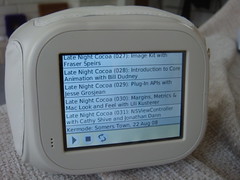
And a couple of photos:


Chumby USB stick for podcatcher Chumby Podcatcher

Just finished getting a UI working on the Chumby. Last week I had the basic http server running in the Chumby and I could browse to it from my laptop and control it that way. Today I managed to get a simple flash widget written that interacts with that server, so a laptop isn’t needed.

The http server is written in Python (see here for info on running Python on the chumby). It has the job of downloading the feeds and interacting with the audio server on the chumby (called btplay). It’s all pretty standard, except that the version of Python I was using didn’t have BaseHTTPServer. This meant I had to roll my own (thankfully pretty easy) using the SocketServer module.

The UI is written in flash (using swfmill and MTASC) and talks to the server to find out about available episodes and to stop/start the audio.

Once I’ve used it for a bit and made sure it’s ready for use I’ll release it and the code behind it. Hopefully other people will find it useful. I know for me this has been one feature that I wish the Chumby already supported. That’s the great thing about the Chumby though – if you want a feature bad enough you can just get in there and write it yourself!

I should also be talking about this app at the next £5app (which should be late September).

Splitting your Turbogears SQLObject models

July 21st, 2008

Just a quick note about splitting your model.py file in Turbogears 1.0, when using SQLObject. The Turbogears docs have some notes on this, but there was an extra trick to it in the end.

The model.py file for chrss, was starting to get a bit big, so it seemed like a good time to do this.

First I moved model.py into model/__init__.py. Then I moved all of the model code itself into separate files (three as it happens) and imported them into model/__init__.py as indicated in the Turbogears docs:


from chrss.model.cms import *
from chrss.model.chess import *
from chrss.model.base import *

However that wasn’t enough, as the __connection__ module level variable for SQLObject wasn’t set and Turbogears couldn’t connect to the DB. So I added this to model/__init__.py (before the other imports):


from turbogears.database import PackageHub

hub = PackageHub("chrss")

and then in each file containing models added the following:


from chrss.model import hub
__connection__ = hub

The main trick was to get the import order correct. model/__init__.py must declare the hub variable, before importing the other files, so that they can access it when they are imported. It’s a bit of a cyclical dependency, which is maybe not ideal, but it’s only used in a limited way.

UPDATE. It turns out that you also need to update the sqlobject.txt file in the .egg-info directory of your project. Otherwise the various tg-admin sql * commands don’t work (as it can’t find the SQLObject classes). Basically you have to list every sub-package of the newly split model package. e.g. change:


db_module=chrss.model

to:


db_module=chrss.model,chrss.model.base,chrss.model.chess,chrss.model.cms